
Creating QR codes for social media
Learn how to create QR codes that link to your social media or link-in-bio page. Perfect for flyers, business cards, and events.
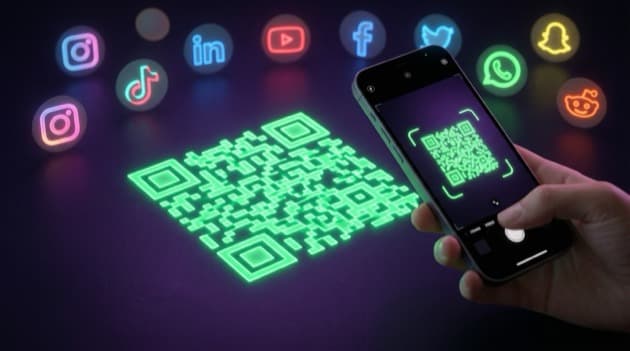
QR codes are back — and they're more useful than ever. With a simple scan from the camera app, people land directly on your website, social media, or link-in-bio page. In this article, you'll learn how to effectively use QR codes for your online presence.
Why QR codes for social media?
QR codes bridge the gap between offline and online. They're perfect for:
- Business cards — One scan and someone has all your links
- Flyers and posters — Direct visitors to your page or promotion
- Events and trade shows — Visitors follow you in seconds
- Product packaging — Link to instruction videos or reviews
- Presentations — Share resources without dictating URLs
QR code to your link-in-bio
The smartest way to use a QR code is to link it to your link-in-bio page. This way you only need one QR code that points to all your content. When you add new links, the QR code automatically stays up to date.
How to create a QR code
There are several ways:
With LinkDash (built-in tool)
If you use LinkDash, you have a built-in QR code generator. Go to the QR code tab in your dashboard and download a QR code that links to your page. You can customize the color and format.
With an online generator
There are many free QR code generators online. Make sure you choose a reliable one that doesn't add tracking. Paste your link-in-bio URL, download the QR code as PNG or SVG, and you're done.
Tips for effective QR codes
Make them large enough
A QR code should be at least 2x2 cm to be reliably scanned. On a poster or banner, it can be larger. Too small = not scannable.
Always test
Scan your QR code with multiple phones before printing. Verify the link opens correctly and the page loads well on mobile.
Add a call-to-action
A QR code alone isn't enough. Add text like "Scan for all links" or "Scan & follow me". People need to know why they should scan.
Ensure contrast
QR codes work best with dark modules on a light background. Avoid light colors on light backgrounds or too much color in the QR code itself.
Use a static URL
Link your QR code to a URL that won't change, like your link-in-bio page. This way the QR code keeps working, even if you change your content.
Where to place QR codes
- Business cards and stationery
- Flyers, posters, and banners
- Product packaging and labels
- Social media posts and Stories
- Email signatures
- Presentations and slides
- Menus and table cards
Create a free QR code
With LinkDash, you can create a free QR code that links directly to your link-in-bio page. No extra tools needed — everything is in your dashboard.
Emma
Growth Manager at LinkDash
Emma is Growth Manager at LinkDash and writes about conversion, link-in-bio strategy and the European creator economy. She focuses on data-driven growth tactics for creators and small businesses.
Ready to get started?
Create your own link-in-bio page for free with iDEAL, Wero and 100+ templates.
Start free