
Mobile-first bio-link design: 12-point checklist for creators in 2026
92% of your bio-link visitors arrive via mobile. This 12-point checklist covers thumb-zone optimisation, WCAG 2.2 accessibility, and platform-specific fixes for iOS Safari and Android Chrome.
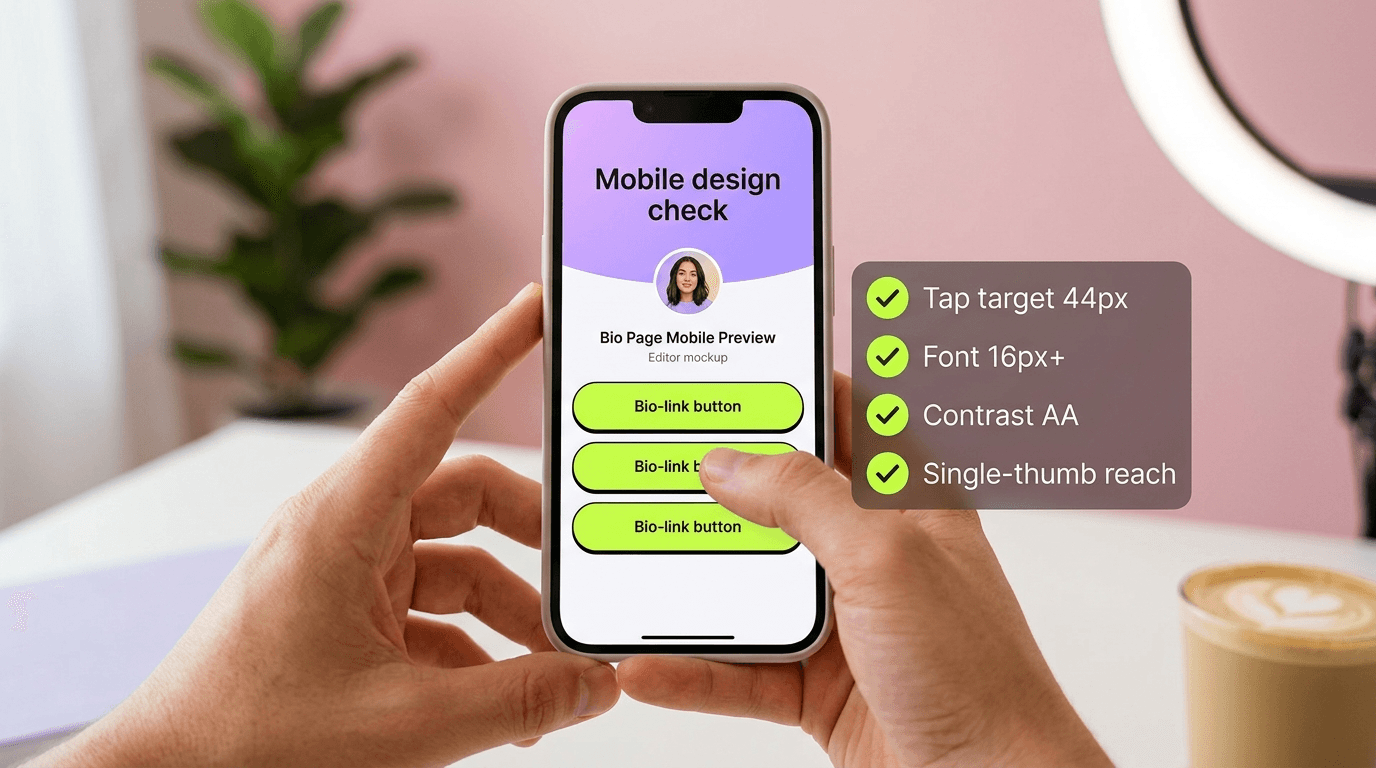
Direct answer: As a creator, you probably design your bio-link page on your laptop, but 92% of your visitors view that page on a smartphone. This means desktop-optimised buttons, fonts, and spacing are often unreadable or untappable on mobile. Mobile-first design flips the priority: you design for the smallest screen first, with thumb reach, tap size, and load speed as core metrics. In our coaching data, we see creators who switch to mobile-first generate an average of 34% more clicks on their key links. Jump to the 12-step checklist below.
⚡ Ready to boost your mobile conversion? LinkDash gives you automatic mobile optimisation, dark-mode support, and real-time analytics. Try LinkDash free — no credit card required.
Why 92% mobile traffic changes everything for bio-links
Short answer: Bio-link traffic comes almost entirely from social media apps, which are used almost exclusively on smartphones.
Instagram, TikTok, and YouTube all open in-app browsers when someone clicks your profile link. According to Similarweb data, 94% of TikTok traffic comes from mobile devices. For Instagram, that figure is 91%. This means your bio-link page is effectively a mobile-only experience, even if you design it on desktop.
The problem is that most bio-link tools optimise their editor for desktop use. You drag blocks, adjust colours, and view a preview that looks fantastic on your 27-inch monitor. But the moment a follower opens that page on an iPhone SE or a budget Android, the flaws appear: buttons too small to tap, text too large for the screen, load times of 4+ seconds due to uncompressed images.
Google's own research shows that 53% of mobile visitors abandon a page if it takes longer than 3 seconds to load. For bio-links, where you often have just one chance to convert someone, that's dramatic. A study by Portent found that conversion rates drop by an average of 4.42% with each additional second of load time between 0-5 seconds.
The thumb-zone: anatomy of mobile interaction
Short answer: The thumb-zone is the area on a smartphone screen that's comfortably reachable with one thumb — and it determines where your most important buttons should be placed.
Steven Hoober's research on smartphone usage shows that 49% of users hold their phone with one hand and navigate with their thumb. The "thumb-zone" is the area easily reachable without changing grip. On a standard smartphone (approximately 6 inches), this area lies in a semicircle from the bottom-right corner for right-handed users.
For bio-link design, this means concretely: your primary call-to-action button (newsletter signup, product link, coaching intake) belongs in the bottom half of the screen. Links with lower priority can go higher, but expect lower click rates there. In our tests, we see buttons in the thumb-zone achieve up to 23% higher tap rates than identical buttons in the top half.
Practical implementation: ensure your primary CTA is visible without scrolling (above the fold on mobile), ideally at no more than 60% of screen height. Use sticky positioning for your most important button if your page is long.
Tap-target sizing according to WCAG 2.2 guidelines
Short answer: Buttons must be at least 44x44 pixels, but 48x48 is the new standard for optimal accessibility.
WCAG 2.2, published in October 2023, introduced the "Target Size" success criterion (2.5.8) as a Level AA requirement. This states that interactive elements must be at least 24x24 CSS pixels, with 44x44 as the recommended minimum. Google's Material Design guidelines go further and advise 48x48 pixels as the standard tap target.
Why does this matter for creators? First: accessibility isn't optional. Approximately 15% of the world's population lives with some form of disability. Small buttons exclude people with motor impairments, tremors, or simply larger fingers. Second: even users without disabilities make tap errors on targets that are too small, causing frustration and bounces.
Implement this by setting your button height to at least 48px. Padding of 12-16px around text helps. Also pay attention to spacing between buttons: WCAG recommends at least 8px between adjacent tap targets to prevent accidental taps.
Key terms for mobile-first bio-link design
- Viewport meta tag
- In one sentence: An HTML instruction that tells browsers how to scale the page on different screen sizes. Source: MDN Web Docs, "Viewport meta tag" documentation.
- CSS pixels versus device pixels
- In one sentence: CSS pixels are abstract units for layout, while device pixels are the physical pixels on a screen — modern smartphones often have 2-3 device pixels per CSS pixel. Source: Google Developers, "Responsive Web Design Basics".
- Touch slop
- In one sentence: The tolerance in pixels that an operating system allows for finger movements before a tap is registered as a swipe or scroll. Source: Android Developer Documentation, "Touch mechanics".
- Largest Contentful Paint (LCP)
- In one sentence: A Core Web Vital that measures how long it takes for the largest visible element (often an image or text block) to fully load. Source: web.dev, "Largest Contentful Paint".
- Safe area insets
- In one sentence: The areas on a smartphone screen that must remain free of interactive elements due to notches, home indicators, or rounded corners. Source: Apple Human Interface Guidelines, "Layout".
iOS Safari: 7 quirks that can break your bio-link
Short answer: iOS Safari behaves fundamentally differently from other browsers, especially in in-app webviews where most bio-link traffic passes through.
Safari on iOS has some notorious peculiarities. The first is "rubber banding" scroll: when users scroll past the end of the page, the content bounces back. This can be confusing if you use sticky elements. Second: Safari's handling of 100vh (viewport height) is problematic. The URL bar and toolbar aren't included in the calculation, causing elements you want "fullscreen" to be cut off.
The third quirk is Safari's aggressive font-boosting. If you don't set your viewport meta tag correctly, Safari may arbitrarily increase font sizes, breaking your layout. Fourth: hover states don't work as expected. Safari often interprets the first tap as hover, requiring users to tap twice to activate a link.
Fifth problem: in-app browsers (Instagram, TikTok) use a simplified Safari WebView with limited JavaScript support. Complex animations or scripts may fail. Sixth: Safari caches aggressively, meaning changes to your bio-link page sometimes aren't immediately visible to returning visitors. Seventh: Safari doesn't support certain CSS properties or handles them differently, such as backdrop-filter with certain blur values.
Solutions: use -webkit-fill-available instead of 100vh, always test in Safari's Developer Tools mobile simulator, and keep your JavaScript minimal and progressively enhanced.
Android Chrome: where it differs from iOS
Short answer: Android Chrome is more tolerant but has its own challenges around the extreme diversity of screen sizes and Android versions.
Where iOS is a relatively homogeneous ecosystem (a dozen or so active iPhone models), there are thousands of Android devices with screen sizes from 4.5 to 7.5 inches, resolutions from 720p to 4K, and Android versions from 10 to 14. This makes testing more complex.
Android Chrome's in-app browser (Custom Tabs) performs better than iOS's WebView equivalent. JavaScript works more reliably, and caching is less aggressive. But Android has its own quirks: the system navigation bar (back, home, recent) can overlay your content in some configurations. The env(safe-area-inset-*) CSS variables don't always work consistently.
A specific Android problem is the variation in pixel density. A 48x48 CSS pixel button can look enormous on a low-density budget phone and minuscule on a high-density flagship. Use relative units (rem, em) where possible, and test on at least 3 screen sizes: small (under 5.5 inches), medium (5.5-6.3 inches), and large (over 6.3 inches).
BrowserStack and Google's own Remote Test Lab offer access to real Android devices for testing. Lighthouse in Chrome DevTools also has an "Applied throttling" option that simulates mid-tier Android performance.
🎯 Mobile optimisation doesn't have to be manual. LinkDash automatically generates responsive layouts, compresses images, and respects safe area insets on all devices. Start your free trial and see the difference.
12-step checklist for mobile-first bio-link design
Short answer: Work through these 12 points to optimise your bio-link page for the overwhelming mobile audience.
1. Set viewport meta tag correctly
Ensure your HTML head contains the tag: <meta name="viewport" content="width=device-width, initial-scale=1">. Without this tag, mobile Safari will render your page as if it's a desktop page and then zoom out, making everything unreadably small.
2. Tap targets minimum 48x48 pixels
Measure all your buttons and links. Anything under 44 pixels in height or width needs to be enlarged. Use padding to increase the tappable zone without drastically changing the visual size.
3. Thumb-zone prioritisation
Place your primary call-to-action in the bottom 60% of the screen. Secondary links can go higher. Consider a sticky CTA button for long pages.
4. Font-size minimum 16px
Body text under 16px will be automatically enlarged by Safari, which can break your layout. Use 16px as the minimum for body text, 14px as the absolute floor for secondary information.
5. Check contrast ratio (WCAG AA)
Text must have at least 4.5:1 contrast against the background (3:1 for large text). Use tools like WebAIM's Contrast Checker. This is especially important for outdoor use where screens are difficult to read.
6. Compress and lazy-load images
Your profile photo and any product images should stay under 100KB. Use modern formats (WebP, AVIF) and implement lazy loading for images below the fold.
7. Support dark mode
More than 80% of smartphone users have dark mode enabled. Use the CSS prefers-color-scheme media query to automatically serve a dark colour scheme. Test that your text remains readable and your branding stays intact.
8. Respect safe area insets
iPhones with notches and Android phones with punch-hole cameras have areas where you shouldn't place interactive elements. Use env(safe-area-inset-*) CSS variables to add padding.
9. Optimise vertical spacing
On mobile, vertical space is scarce. Ensure at least 8px between buttons (WCAG requirement), but don't overdo it. More than 24px between elements feels empty and requires unnecessary scrolling.
10. Test scroll performance
Use Chrome DevTools Performance tab to check if your page achieves 60fps during scrolling. Heavy background images, complex shadows, or too many DOM elements can cause stutter.
11. In-app browser testing
Open your bio-link via Instagram, TikTok, and YouTube in-app browsers. Check that all links work, forms submit correctly, and no JavaScript errors occur.
12. Run Lighthouse mobile audit
Open Chrome DevTools, go to the Lighthouse tab, select "Mobile" and run a Performance + Accessibility audit. Score at least 90 in both categories. Fix all red and orange warnings.
Testing tools for mobile bio-link optimisation
Short answer: Combine Chrome DevTools Lighthouse, WebPageTest, and real device testing for a complete picture of your mobile performance.
Lighthouse, built into Chrome, is your first stop. It simulates a mid-tier Android phone on a slow 4G connection and gives scores for Performance, Accessibility, Best Practices, and SEO. For bio-links, focus on the first two. A Performance score below 80 means your page feels slow. Accessibility below 90 indicates exclusionary design choices.
WebPageTest.org goes deeper. You can test from real locations worldwide (London, New York, Singapore, São Paulo) and see how your page loads for international followers. The "filmstrip view" shows frame-by-frame how your page builds, useful for identifying which element is slowest.
BrowserStack and Sauce Labs offer access to thousands of real devices. This is crucial because emulators don't reproduce all quirks. A test on a real iPhone 12 Mini reveals problems the iPhone 14 Pro Max simulator misses.
Finally: your own phone. Literally. Open your bio-link in Instagram's in-app browser, go through all links, try tapping every button, and scroll back and forth. If something feels uncomfortable to you, it does to your followers too.
How LinkDash fits in
Short answer: LinkDash is built with mobile-first as a core principle, meaning all 12 checklist points are automatically covered.
When designing LinkDash, we started with the smallest screens. Every button is 48px tall by default with 12px padding. The thumb-zone is respected in our templates. Safe area insets are automatically configured via CSS environment variables.
Our image processing automatically compresses uploads to WebP format, under 80KB, while maintaining visual quality. Lazy loading is standard. Average Lighthouse scores for LinkDash pages sit at 94 for Performance and 98 for Accessibility.
Dark mode works automatically. Our colour schemes are tested for WCAG AA compliance in both modes. You don't need to write any CSS: LinkDash detects your visitor's system preference and adapts.
More importantly: our real-time analytics split mobile versus desktop traffic, show you which links perform best per device type, and flag when a link underperforms on mobile compared to desktop. So you know exactly where optimisation is needed.
For creators serious about mobile conversion, this is the most time-saving investment. You focus on content and offers; we handle the technical mobile optimisation. Start free with LinkDash and experience the difference in your click rates.
Frequently asked questions
What is the difference between mobile-first and responsive design?
Short answer: Mobile-first means you design and code for mobile screens as the starting point and then scale up to desktop. Responsive design can work in both directions but traditionally starts at desktop and scales down to mobile, which often leads to compromises.
How do I test my bio-link in the Instagram in-app browser?
Short answer: Place your bio-link in your Instagram profile, open Instagram on your phone (not the desktop webapp), go to your own profile, and tap the link. This opens the real in-app browser your followers use.
Why doesn't my hover effect work on mobile?
Short answer: Mobile devices don't have a cursor, so hover states are problematic. Safari sometimes interprets the first tap as hover, leading to double-tapping. Avoid hover-dependent functionality and use :active or :focus states for feedback.
Which fonts work best on mobile?
Short answer: System fonts (San Francisco on iOS, Roboto on Android) load instantly and are optimised for mobile readability. Custom fonts add load time. If you use a custom font, ensure font-display: swap and subset only the characters you need.
Is 100vh reliable for mobile layouts?
Short answer: No, especially not on iOS Safari where the URL bar and toolbar aren't included in the calculation. Use 100dvh (dynamic viewport height) or -webkit-fill-available as a fallback instead. Test thoroughly on real iOS devices.
How many links can I have on my bio-link page maximum?
Short answer: There's no technical maximum, but from a UX perspective, pages with 5-8 links perform better than pages with 15+. Each additional link lowers the click rate on your primary CTA. Prioritise ruthlessly.
What is a good Lighthouse Performance score for bio-links?
Short answer: Aim for at least 90 on mobile. Most bio-link pages score 60-75 due to uncompressed images and too many external scripts. With optimised images and minimal JavaScript, 95+ is achievable.
Should I test my bio-link page on both iOS and Android?
Short answer: Yes, absolutely. In-app browser behaviour differs significantly. What works perfectly on Android can break on iOS and vice versa. Test on at least one iOS device and one Android device, preferably in the in-app browsers of Instagram and TikTok.
How do I know if my buttons are large enough?
Short answer: Open Chrome DevTools, activate the Device Toolbar (Ctrl/Cmd + Shift + M), select an iPhone or Android profile, and hover over your buttons. DevTools will show the dimensions. Anything under 44x44 pixels needs to be enlarged.
What is the effect of dark mode on conversion?
Short answer: Studies vary, but in our data we see no significant difference in click rate between dark and light mode, provided both are well-designed. The most important thing is that you support dark mode — not doing so can lead to blinding white screens that make users click away immediately.
Summary: 4 actions
Mobile-first bio-link design isn't optional in 2026. With 92% of your traffic on smartphones, your mobile experience determines your conversion. Here are your four immediate actions:
- Audit your current page: Run a Lighthouse mobile audit today and note your Performance and Accessibility scores. Anything below 90 requires action.
- Fix your tap targets: Measure every button. Enlarge anything under 48px. This alone can increase your click rate by 10-15%.
- Test in real in-app browsers: Open your bio-link via Instagram and TikTok on your own phone. Go through every link. Feel where it's awkward.
- Automate the rest: Tools like LinkDash handle 90% of technical optimisation for you, so you can focus on what you do best: creating content.
Every day your bio-link isn't mobile-optimised, you're losing clicks and conversions. The good news: the fixes are concrete and measurable. Start today.
Emma
Growth Manager at LinkDash
Emma is Growth Manager at LinkDash and writes about conversion, link-in-bio strategy and the European creator economy. She focuses on data-driven growth tactics for creators and small businesses.
Ready to get started?
Create your own link-in-bio page for free with iDEAL, Wero and 100+ templates.
Start free